

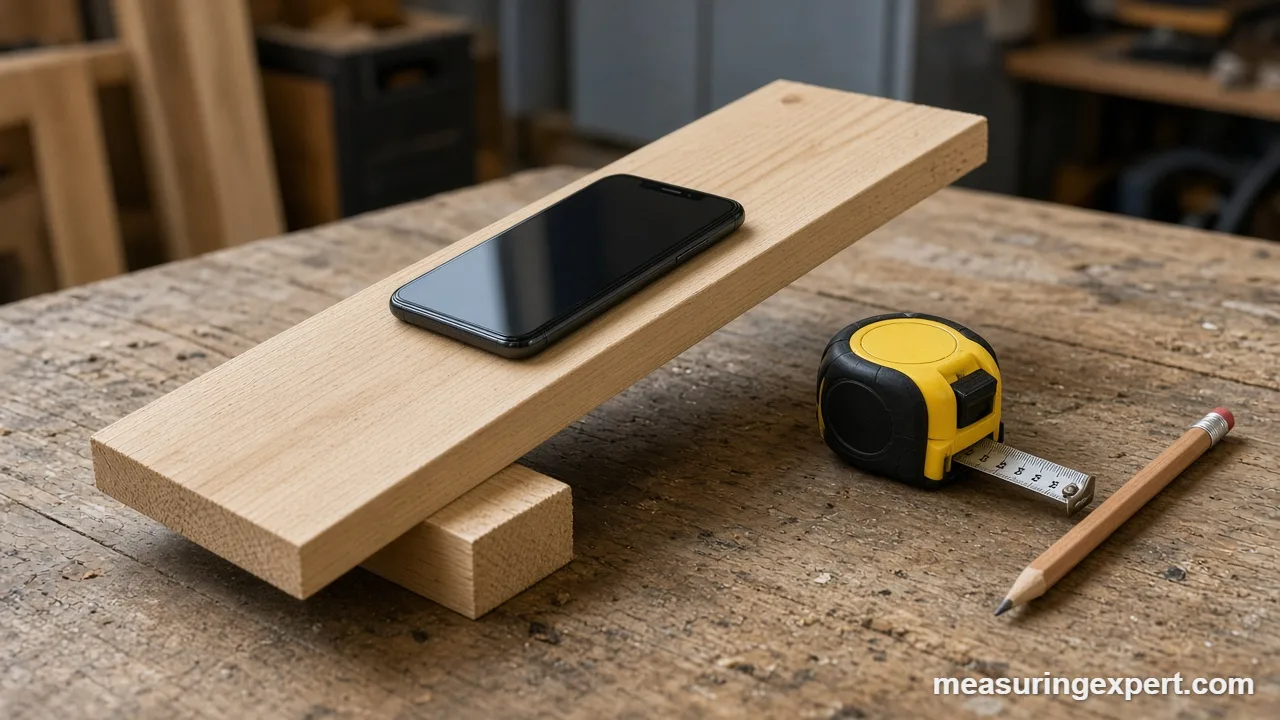
An angle measuring app turns your phone into a tilt gauge. The phone’s motion sensors detect how far it leans from level, so you lay its edge on a surface and read the angle in degrees. Calibrate it first, then check it on a known angle, because a 1 degree error equals about 2.1 inches over 10 feet.
Phones are good at measuring angles because they already contain a motion sensor. In fact, apps simply read that sensor and show the result as a number. As a result, the app costs nothing and is always in your pocket.
However, a phone is not a precision instrument. For example, its edges are rounded, its case adds bulk, and its sensor is made for games and screen rotation. Therefore the right question is not whether the app works, but how far you can trust it.
In short: use an angle measuring app for quick checks such as a shelf, a ramp or a rough roof slope, and confirm anything important with a real gauge. This guide shows how to set up the app, read it correctly and test its accuracy.
Apple describes its own Level tool as a way to check whether an object is level and to see how many degrees it deviates from level. As a result, every phone tilt app measures against gravity, not against another edge.
Convert Your Angle Measuring App Reading
Most apps show degrees, but plans and tools often use percent grade or roof pitch. Type the angle from your phone below, and the converter shows all three. For example, 26.57 degrees is a 6 in 12 roof pitch and a 50 percent grade.
How an Angle Measuring App Reads an Angle
Phone apps use one of two methods, and each answers a different question. The table shows how they compare.
| Method | What it senses | Measures | Typical use |
|---|---|---|---|
| Tilt (accelerometer and gyroscope) | Gravity direction | Angle from level or plumb | Ramps, roofs, boards, shelves |
| Camera protractor | Lines in a photo | Angle between two lines you place | Corners and drawings, photographed square-on |
| Compass | Magnetic field | Direction from north, not tilt | Navigation only |
In general, tilt mode is the one to trust. The phone senses which way gravity pulls, so it knows how far it leans. Camera mode, by contrast, depends on how square you hold the phone to the subject. Also, even a small tilt of the phone distorts the lines in the picture and changes the answer.
How to Use an Angle Measuring App Step by Step
These steps work with almost any tilt app. In addition, the same method applies to the Level inside the iPhone Measure app, which shows the surface angle in degrees when you hold the phone against it.
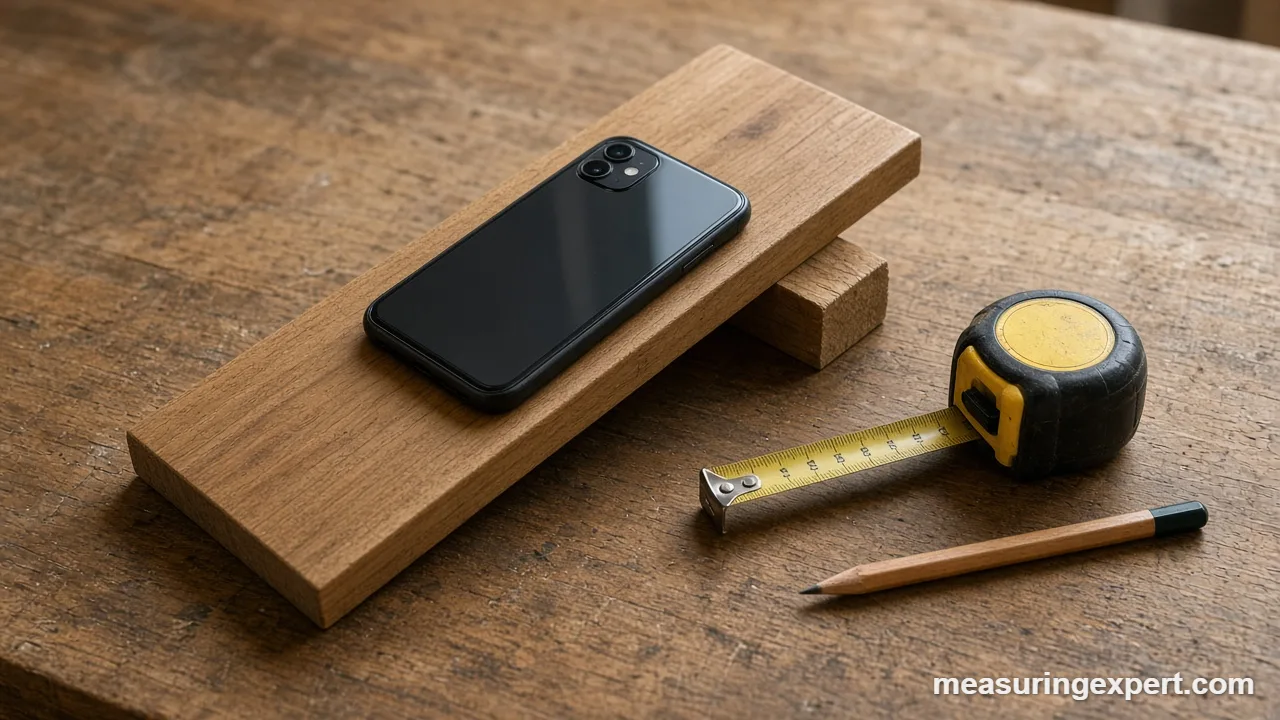
- Choose a tilt or level mode. Open the app and pick the tilt, level or inclinometer mode, not the camera mode, for slopes and boards.
- Remove the case. Take off any thick or bumpy case so the phone’s long edge sits flat against the surface.
- Zero on a flat surface. Place the phone on a surface you trust to be level, then press the zero or calibrate button.
- Check with a flip. Turn the phone 180 degrees on the same spot. Both readings should match, or differ by only a small amount.
- Press the long edge to the surface. Hold the phone flat against the board, ramp or roof deck. Keep your fingers off the edge and hold it still.
- Wait and read. Wait one or two seconds for the number to settle, or use the hold button, then write down the angle in degrees.
- Repeat three times. Take three readings and use the middle value. If they spread by more than a degree, recalibrate.
- Convert if needed. Type the reading into the converter above to see the same slope as percent grade or roof pitch.
Tilt Mode vs Camera Mode in an Angle Measuring App
Many apps offer both modes, so it helps to know when to pick each one.
First, use tilt mode when the surface is a ramp, roof, stair, board or tool table. Next, lay the phone on it, or press the phone’s edge against it. The reading reflects the true slope, as long as the surface is flat where the phone touches.
Second, use camera mode when you only have a photo or a drawing. Stand square to the object, then line up the on-screen arms with the two edges, and read the angle. Keep in mind that perspective bends angles, so this method is for rough numbers only.
For tasks such as the angle between two walls, a physical tool is easier. Our guide to protractors versus bevel gauges explains which one fits which corner.
How to Test Your Angle Measuring App for Accuracy
Therefore, do not trust a number until you have tested the app on something you know. Fortunately, three quick tests need no special tools.
| Test | How | Pass |
|---|---|---|
| Flat table flip | Zero on a flat surface, turn the phone 180 degrees, read again | Both readings match within about 0.2 degrees |
| Square corner | Stand the phone against a wall, then lay it on the floor | Reads about 90 and 0 degrees |
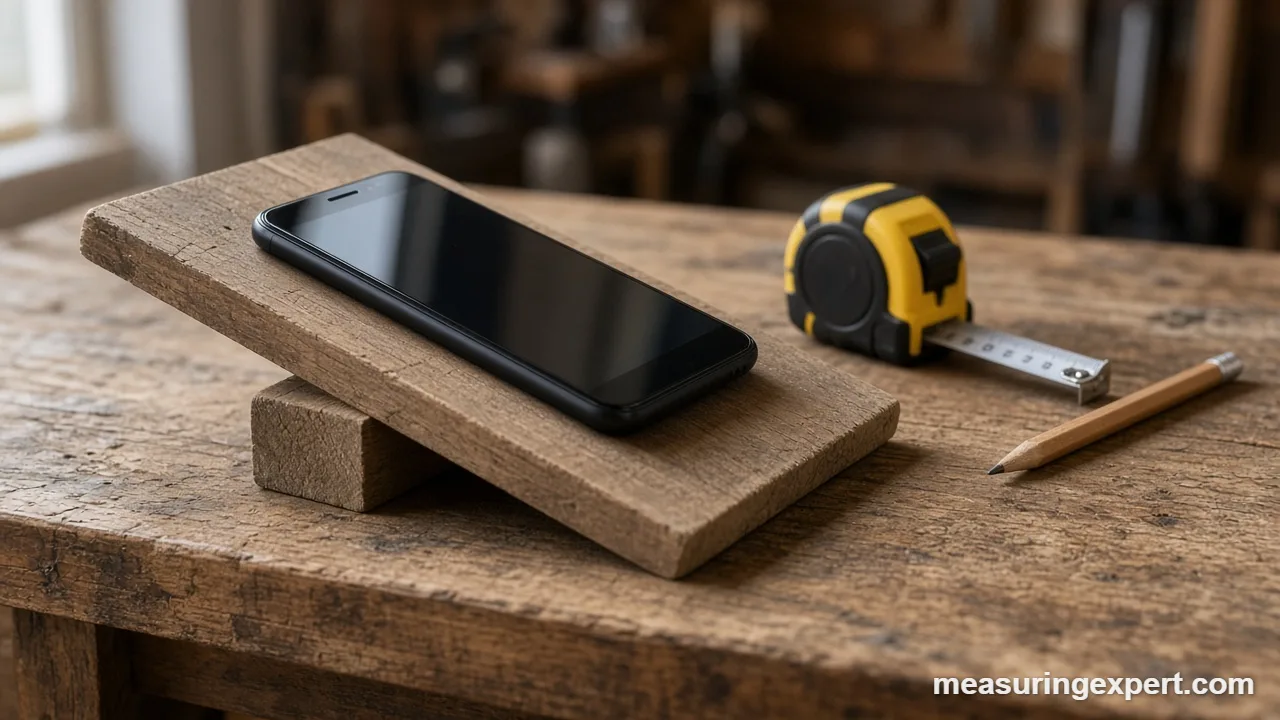
| 3-4-5 ramp | Prop a board 3 in high over 4 in of run | Reads 36.87 degrees |
The 3-4-5 test works because a right triangle with sides of 3, 4 and 5 has an angle of 36.87 degrees (atan of 3/4). Therefore it gives you a known angle with only a tape measure.
Finally, keep the size of an error in mind. A 1 degree error shifts a line by about 2.1 in (53 mm) over 10 ft, and a 0.5 degree error shifts it by about 1.05 in (27 mm). That is fine for hanging a shelf and too much for a miter joint.
Practical Uses for an Angle Measuring App
Phone apps are most helpful for quick, low-risk jobs.
- Shelves and frames: Check that a shelf sits at 0 degrees before you drill.
- Ramps and drainage: A 1 in 12 slope is 4.76 degrees, so check a ramp against that number.
- Roof pitch from the ground or a ladder: Place the phone on a straight board that rests on the roof surface, never by walking a steep roof.
- Solar panel tilt: Compare your panel’s slope with the target in our guide to the best solar panel angle.
- Stairs: Read the slope of the nosings, then compare it with the limits in our guide to the staircase angle.
- Tree or building height: Many apps include a clinometer mode. For an object 50 ft away seen at 40 degrees, with your eye at 5.5 ft, the height is 50 x tan 40 + 5.5, which is about 47.5 ft.
Height by angle follows the same trigonometry as our walkthrough on building height measurement.
Recommended Tools to Pair With an Angle Measuring App
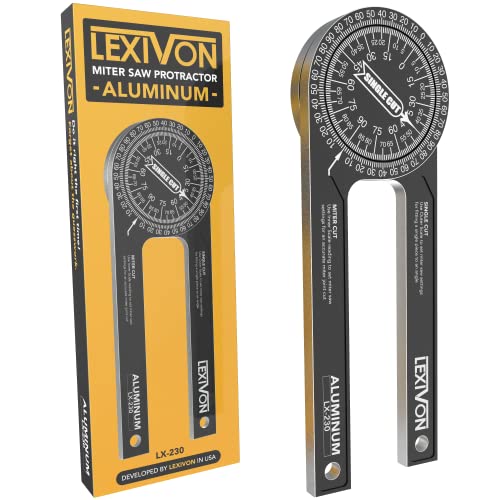
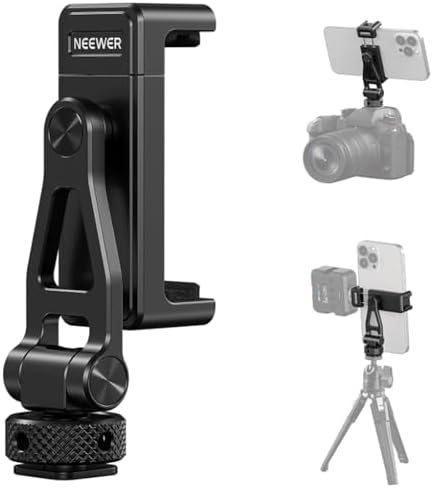
A phone is best used alongside a tool that can check it. We chose these picks based on manufacturer specs and buyer reports, favoring established brands. First, a digital angle gauge confirms your phone reading. Next, a protractor handles corners. Finally, a tripod mount holds the phone steady for camera work.


As an Amazon Associate, Measuring Expert earns from qualifying purchases.
Key Takeaways
- Tilt mode measures angle from level. Camera mode measures lines in a photo and is less reliable.
- A compass app shows direction, not the angle of a surface.
- Remove thick cases and zero the app on a flat surface first.
- Check the app with a 180 degree flip and the 3-4-5 test (36.87 degrees).
- A 1 degree error equals about 2.1 in over 10 ft.
- Use the phone for quick checks and a real gauge for cuts, stairs and structural work.
Troubleshooting an Angle Measuring App
Fortunately, most problems have a simple cause. Work through this list in order.
| Problem | Likely cause | Fix |
|---|---|---|
| Reading never settles | Moving hand or vibration | Rest the phone on the surface and use the hold button |
| Flat table reads 0.5 degrees or more | Poor calibration or uneven table | Recalibrate, then flip the phone and compare |
| Different value each day | Case, temperature or app update | Zero again before each job |
| Camera angles look wrong | Phone not square to the subject | Retake the photo from straight on |
Do and Don’t With an Angle Measuring App
Do
- Zero the app on a flat surface before each job.
- Use the long edge of the phone for the steadiest contact.
- Take three readings and use the middle value.
- Check against a known angle now and then.
Don’t
- Trust a camera angle taken from the side.
- Measure with a thick, bumpy case on.
- Use a compass app as a protractor.
- Cut expensive material from a single phone reading.
Honest Limits of an Angle Measuring App
A phone sensor has no published accuracy that applies to every model. For example, results vary by phone, app, temperature and software update. As a result, the same app can read slightly differently on two phones.
In addition, a tilt app measures against gravity only. It cannot tell you the angle between two tilted surfaces, and it cannot read a surface it cannot touch. Because of that, treat the number as an estimate and verify it when it matters.
When to Call a Professional
Hire a qualified carpenter, roofer or inspector when the angle affects safety or code, such as stairs, handrails, ramps for wheelchairs, roof framing or solar mounts. Also, they use calibrated tools and know the local rules. For traceable accuracy, a calibration lab can certify a gauge.
Angle Measuring App FAQs
What is the best angle measuring app?
No single app wins for every job. Pick one that reads tilt from the phone’s motion sensors, shows degrees with at least one decimal, has a hold button, and lets you zero or calibrate on a flat surface. The built-in iPhone Measure app includes a Level for quick checks.
Can I use my phone to measure angles?
Yes. A phone has motion sensors that detect tilt from level, so an angle measuring app can read the slope of a roof, ramp or board when you lay the phone on it. For the angle between two walls, use the camera mode or a physical angle finder.
How accurate is an angle measuring app?
It depends on the phone, the app and how flat the surface is. Test yours on a known angle first. Because a 1 degree error moves a 10 ft line by about 2.1 in, use a real gauge for cuts that must fit tightly.
Can a phone be used as a protractor?
Yes, in two ways. A tilt app lays the phone on one surface and reads its angle from level. A camera protractor lets you line two on-screen arms up with a photo. The first method is usually more accurate than the second.
How do I measure degrees on a phone?
Open a tilt, level or inclinometer app, zero it on a flat surface, then press the phone’s long edge against the surface you want to measure. The screen shows the angle in degrees. Do not use a compass app, because it shows direction instead of tilt.
How do I calibrate an angle measuring app?
Place the phone on a surface you trust to be flat, press the zero or calibrate button, then turn the phone 180 degrees and check that it still reads zero. If the two readings differ, split the difference or recalibrate.
Why does my angle measuring app give different readings each time?
Usual causes are a bumpy phone case, a dirty or uneven surface, a shaky hand, or a poor calibration. Remove the case, press the phone flat, wait for the number to settle, and take three readings.
Can a phone measure the angle between two walls?
A tilt app cannot, because both walls are vertical and the phone only senses gravity. Use a camera protractor app held square to the corner, or measure with a digital angle finder, which reads the angle between two arms.
Can I measure roof pitch with a phone?
Yes, if you can safely place the phone on the roof surface or on a straight board lying on the rafters. A 6 in 12 pitch is 26.57 degrees, and 4 in 12 is 18.43 degrees. Stay off steep roofs and use a ladder or a long board instead.
When should I use a real angle gauge instead of an app?
Use a real tool for anything that needs a tight fit or a safety check: saw blade bevels, stair stringers, handrails and structural framing. A phone is a good quick check, and a gauge is the better final check.
Angle Measuring App: The Bottom Line
To sum up, an angle measuring app is a handy tilt gauge for quick jobs. Zero it on a flat surface, press the phone’s long edge to the work, and test it on a known angle like the 3-4-5 ramp.
Above all, remember how small errors grow. When the job needs a tight fit, confirm the phone reading with a digital angle gauge, and read more in our guide to tools for measuring angles.
1 thought on “Angle Measuring App: How to Measure Angles on a Phone (Setup, Accuracy and Tests)”